
Website Basics Guide
Your DIY guide to managing the essentials of your wordpress & Divi website
DIYers Manual To The Basics
So you can confidently get started
Your new website is now live - and this guide is here to help you feel confident when making simple updates when the need arises. From accessing your WordPress dashboard to editing page, replacing images and managing your website settings, these step by step guides cover the basics every website owner should know. If you need a little help, not to worry, I'm always here to support with updates, changes or anything beyond the basics.
How To Log Into WordPress
A: Your WordPress login page is usually located at:
yourdomain.com/wp-admin
You will see your login page that looks something like this: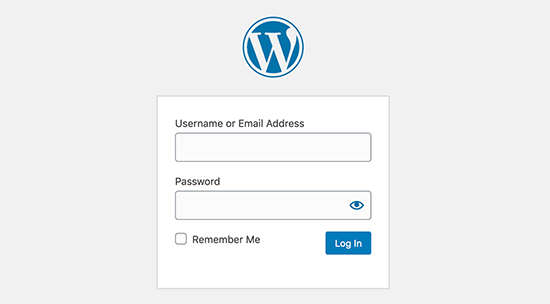
Enter your username or email address and password, then click Log In.
Tip: Save your login page as a bookmark so it is easy to find next time.
Understanding The WordPress Dashboard
Q: What is the WordPress Dashboard?
A: The WordPress Dashboard is the control area behind your website where you can manage your content, pages, blog posts, images and website settings.
Common areas you may use include:
- Pages – create and manage business information pages
- Posts – create and managing blog articles
- Media – upload and manage images
- Users – manage website users and profiles
- Updates – view available WordPress, theme and plugin updates
Tip: Only make changes you are comfortable with. If you're unsure, it's always best to ask before changing settings.
Important: Many page headings are optimised for SEO. Changing them may affect how your website appears in search engine results. If you're unsure, it's best to check first.
How To Reset Your WordPress Password
Q: What do I do if I forget my WordPress password?
A: On the WordPress login page, click Lost your password? and enter the email address linked to your account.
You will receive an email with instructions to create a new password. I highly recommend you create a strong password made up of a combination of uppercase and lowercase letters, numbers and symbols. Easy passwords often lead to security breaches.
Tip: If you don't receive the email, check your spam folder or contact us for help.
How To Add A New User
Q: How do I add a new user to my WordPress website?
A: To add a new user:
- Log in to your WordPress dashboard.
- Go to Users → Add New User.
- Enter the person's username and email address.
- Choose the appropriate User Role. (View Common User Roles below)
- Click Add New User.
The new user will receive an email with instructions to set up their password and log in.
Tip: Only give users the level of access they need. This helps keep your website secure.
COMMON USER ROLES
- Administrator – Full access to all website settings, users, plugins and content. Only assign this role to people you completely trust.
- Editor – Can create, edit and publish any pages or blog posts, but cannot change website settings or install plugins.
- Author – Can create, edit and publish their own blog posts only.
- Contributor – Can write blog posts but cannot publish them. Posts must be reviewed first.
- Subscriber – Can log in and manage their own profile only. This role is commonly used for membership or learning websites.
Tip: If you're adding someone to help update your website, Editor is often the best choice. Avoid assigning Administrator access unless it's absolutely necessary.
Can I Change My WordPress User Name?
A: No. Once a WordPress user account has been created, the username cannot be changed through the WordPress dashboard.
If you need a different username, you have two options:
- Create a new user account with the preferred username and transfer ownership of your content.
- Ask your website administrator to create a new account for you.
Good to know: You can change your Display Name, which is the name shown publicly on your website, without changing your username.
Tip: When creating a new user, choose a professional username that you're happy to keep long term, as it cannot be edited later.